Live blogging right now from the Microsoft Bangalore office at occasion of PDC10 Night and it was fun to hear welcome note from Moorthy Uppaluri [General Manager, Developer & Platform Evangelism Microsoft Corporation (India)] and he did shared Microsoft vision for cloud computing and WP7 and how market is getting influenced by the devices as very soon device sales is going to outnumber the pc sales. Is this an inflection point where we are seeing a shift from PC to device…from server to cloud?
During the PDC, we are going to hear and see about latest technology innovations from Microsoft and the first one to come up is IE9. IE9 gets a substantial push with HTML5 as browsing experiencing will change from what we see today..e.g. watching a HD video in browser with simultaneous browsing in same window!....Steve Ballmer [SB] continues ahead by saying that WP7 is different kind of phone. Wp7 available from 16 different operators in 30 different countries is yet not available in India though and no defined timeline yet for its release. Microsoft seems to be focusing on WP7 marketplace and getting more apps to compete against the Apple iphone and Google Android based phones. Further down the line Bob Muglia talks about Microsoft Azure and why they are focused on Platform as a service cloud model and the benefits of putting the apps into Microsoft windows azure and how azure acts as OS for PAAS cloud. Bob talks about windows azure appliances which will be available from partner hardware vendors enabling deployment of private clouds based on azure. PAAS cloud model enables a developer to concentrate more on what developer is good i.e. focus on his app and code and leave the infrastructure High availability, scalability and IT infrastructure management worries to cloud operator.
Here are the details of some interesting PDC announcements:
Making it easier to move existing applications and run them more efficiently, Microsoft is providing a bridge to PaaS from IaaS.
• Windows Azure Virtual Machine Role eases the migration of existing Windows Server applications to Windows Azure by eliminating the need to make costly application changes and enables customers to quickly access their existing business data from the cloud. Today at PDC 2010, Microsoft announced Virtual Machine Role support for Windows Server 2008 R2 in Windows Azure. A public beta will be available by the end of 2010.
• Server Application Virtualization enables customers to deploy virtualized application images onto the Windows Azure worker role (single role, single instance) rather than the VM Role. Through this approach, customers can more easily migrate their traditional applications to Windows Azure without the need to rewrite them or to package them within a VM. Once the application is deployed with server application virtualization on Windows Azure, customers can benefit from the automated service management capabilities of Windows Azure including automatic configuration and ongoing operating system management. Server Application Virtualization for Windows Azure will be available as a community technology preview (CTP) before the end of 2010, and the final release will be available to customers in the second half of 2011.
• Constructing VM role images in the cloud. Microsoft is enabling developers and IT professionals to build VM images for VM role directly in the cloud. This will be offered as an alternative to the current approach of building images on-premises and uploading them over the Internet. This update will be available in 2011.
• Support for Windows Server 2003 and Windows Server 2008 SP2 in the VM Role. Microsoft supports Windows Server 2008 R2 in the Guest OS. In 2011, Microsoft will add support for Windows Server 2003 and Windows Server 2008 SP2.
Hope you find this information interesting and thanks Microsoft for this special invitation.
GAURAV ANAND
Thursday, October 28, 2010


Monday, October 11, 2010
VMware Project Sydney aka VCloud Request manager launching tomorrow
VMware VCloud Request manager which is launching tomorrow i.e. Oct 12, is very much adding the functionality which was missing in VCloud Director 1.0 and enables you to take control of vCloud Director based Private Clouds, via following
1. Adding sophisticated approval workflows to provisioning requests.
2. Automatically tracking software license usage as vApps are commissioned and decommissioned, and
3. Enforcing standardized settings on vCloud Director “Organizations” through the use of policies called “Blueprints”.
It is targeted to Enterprises building private cloud based on Vcloud director and enables self service provisioning and tracking 3rd party software licensing usage. Project Sydney runs on win2k8 64bit system with oracle 10g/11g and uses MS Active Directory. It will be available for public in Q4 2010. I don't see it much different from what SCVMM self service portal 2.0 [Microsoft Private cloud solution] provides already today.


For more details stay tuned to VMware website tomorrow and very soon product will be available for testing. Happy cloud computing till then.
GAURAV ANAND
Monday, October 4, 2010
How Easy to configure ISCSI Target with Powershell integration
So as we know that Windows Storage Server 2008 R2 has been RTM and MSDN and Technet subscribers can evaluate Microsoft ISCSI Target 3.3 for Development, Test and all other non-production purposes. You can install ISCSI target on any windows server 2008 R2 system [Physical or Virtual] and then present storage from same as Vdisks. The Microsoft ISCSI Software Target 3.3 can only be installed on Windows Server 2008 R2 but not any other OS.
The cool functionality of new ISCSI target 3.3 is integration with powershell and in below screencast you will see how easy it is to automate Target creation, configuration and presentation of Vdisks to initiator servers using powershell in less than 2 minutes.
3 line powershell script which does the magic
******************************************************************************
New-IscsiServerTarget -TargetName "yyyyy" -InitiatorID IPAddress:zzzzz
New-IscsiVirtualDisk "C:\xxxxx.vhd" -size 50MB
Add-VirtualDiskTargetMapping "yyyyyy" "C:\xxxx.vhd"
*************************************************************
Hope you find this information interesting and dont forget to try ISCSI Target 3.3 yourself!
GAURAV ANAND
The cool functionality of new ISCSI target 3.3 is integration with powershell and in below screencast you will see how easy it is to automate Target creation, configuration and presentation of Vdisks to initiator servers using powershell in less than 2 minutes.
3 line powershell script which does the magic
******************************************************************************
New-IscsiServerTarget -TargetName "yyyyy" -InitiatorID IPAddress:zzzzz
New-IscsiVirtualDisk "C:\xxxxx.vhd" -size 50MB
Add-VirtualDiskTargetMapping "yyyyyy" "C:\xxxx.vhd"
*************************************************************
Hope you find this information interesting and dont forget to try ISCSI Target 3.3 yourself!
GAURAV ANAND
Thursday, September 30, 2010
How easy to Install & Configure Hyper-V P4000 Lefthand Virtual SAN Appliance
HP StorageWorks P4000 Virtual SAN Appliance Software (VSA) enables the benefits of a physical SAN with the ability to transform captive server disk drives and build a virtual iSCSI SAN and just a couple of days back HP Storage works P4000 Team has released Hyper-V Virtual SAN Appliance Software (VSA). Sometime back i blogged about the benefits of physical P4000 Lefthand SAN here. Today I tried my hands on this Hyper-V VSA and will share my experience and you will see how easy it is to install and configure the virtual SAN which provides you almost all feature of a Enterprise SAN including snapshots/snapclones & Multi site storage clustering.


You will prefer a Physical disk but for testing i choose Virtual disk

Minimum size needs to be at least 5GB


I manually turned on the Linux Virtual SAN appliance [VSA] Virtual machine but there is nothing more you need to do in Linux VM other than starting it up. [ My Hand is tight in Linux so i felt very happy about it ]

Now we need to install the Centralized Management Console


You see those required and available bytes in Hindi Language [ Not sure why-May be due to IST timezone? ]


Now we are about to find Storage nodes [ I only have one storage node VM deployed ]


Legacy NIC is only used during installation and later synthetic NIC is used


Now we need to create a Mangement Group and Volume


You can also create a multisite cluster as seen below


You can also create a thin provisoned volume


Now I have got my 100MB volume to be provisioned to Initiator, so i created an Initiator which is a 2008 R2 Server


You can also investigate more about HP storage works P4000 SAN solutions at HP site and dont forget to try the trial edition here for both VMware and Hyper-V. This is atleast one SAN solution which supports Cluster shared volumes in Multi site Clustering. Hope you find this blog useful and thanks for your time.
GAURAV ANAND
Blog is based on my Personal understanding of the Technologies mentioned above and information provided is AS IS.


You will prefer a Physical disk but for testing i choose Virtual disk

Minimum size needs to be at least 5GB


I manually turned on the Linux Virtual SAN appliance [VSA] Virtual machine but there is nothing more you need to do in Linux VM other than starting it up. [ My Hand is tight in Linux so i felt very happy about it ]

Now we need to install the Centralized Management Console


You see those required and available bytes in Hindi Language [ Not sure why-May be due to IST timezone? ]


Now we are about to find Storage nodes [ I only have one storage node VM deployed ]


Legacy NIC is only used during installation and later synthetic NIC is used


Now we need to create a Mangement Group and Volume


You can also create a multisite cluster as seen below


You can also create a thin provisoned volume


Now I have got my 100MB volume to be provisioned to Initiator, so i created an Initiator which is a 2008 R2 Server


You can also investigate more about HP storage works P4000 SAN solutions at HP site and dont forget to try the trial edition here for both VMware and Hyper-V. This is atleast one SAN solution which supports Cluster shared volumes in Multi site Clustering. Hope you find this blog useful and thanks for your time.
GAURAV ANAND
Blog is based on my Personal understanding of the Technologies mentioned above and information provided is AS IS.
Tuesday, September 28, 2010
Is Cloud Computing a growth driver for Enterprise Server & Server Platforms!
SMB spending on cloud computing would reach $100B by 2014.
Cloud computing market to reach $160 billion by 2011
By 2014, IDC predicts, sales of cloud computing products or services will generate almost $56 billion in annual revenues.
The key is to reduce the Operational expenses of virtualized and physical workloads by capitalizing on infrastructure automation of datacenters. Large enterprises can consider workload/application migration to private clouds spanned across different divisions within Enterprise.
Microsoft not only provides its customers, Windows Azure cloud for Migrating applications to cloud [platform as a service model], it also has a complete system center suite for IT infrastructure management, monitoring & automation. At same time Microsoft and other large vendors are working together in enabling enterprises build their own private clouds for example Recent announcement of HP and Microsoft together showcasing a private cloud for their customers. Also, HP and Microsoft plan to release a limited production Windows Azure platform appliance for deployment in HP data centers by the end of the year. Recent release of System Center Virtual Machine Manager Self-Service Portal 2.0. will also help customers to build their own private clouds.
Cloud computing market to reach $160 billion by 2011
By 2014, IDC predicts, sales of cloud computing products or services will generate almost $56 billion in annual revenues.
Virtualization was hot couple of years back as cloud computing is today and both are phenomenal approaches to make the IT lean. Virtualization has lead to easy and seamless agile deployment of applications and Virtual workloads. Though at same time it is agile and quick it does lead to resources sprawl if not planned and controlled well. Virtualization has definitely brought savings but not operational savings. In fact the resources sprawl and new technologies have led to higher operational expenditure and Technology education expenditure. Cloud computing is in focus more today as you can save on capital as well as some operational expenses by putting some of your IT workloads into a public, private or hybrid cloud model which again could be platform/software/infrastructure as service. Though cloud computing is very attractive approach but still it does not fit to all and has its own security challenges so in ideal world enterprises are planning to leverage different models of cloud depending on the workload and also are at same time using virtualized and physical workloads. Simple old golden rule..don’t put all eggs in same basket! Global IT is still in transition state.
So while Virtualization does require high compute servers so that you can consolidate your workloads and reduce carbon/space and improve resource utilization on other hand it does lead to server growth as IT budgets are being exercised on upgrading physical servers and also newer more productive and efficient Operating systems like windows server 2008 R2 which are more suitable for virtualization. Virtualization is a relatively new technology and has lead to more operational and in house IT worker training costs.
Cloud computing focuses more on reducing capital expenses while providing on demand resource elasticity as a measured service via Network access. On the cloud provider end he can do resource pooling for various customers in a secure fashion and can achieve better utilization of resources. As cloud computing is in nascent stage we are seeing various big players like Microsoft, VMware, Amazon, HP & IBM and other small cloud providers getting ready for providing cloud services and building their datacenters and hence again server growth.
The key is to reduce the Operational expenses of virtualized and physical workloads by capitalizing on infrastructure automation of datacenters. Large enterprises can consider workload/application migration to private clouds spanned across different divisions within Enterprise.
Microsoft not only provides its customers, Windows Azure cloud for Migrating applications to cloud [platform as a service model], it also has a complete system center suite for IT infrastructure management, monitoring & automation. At same time Microsoft and other large vendors are working together in enabling enterprises build their own private clouds for example Recent announcement of HP and Microsoft together showcasing a private cloud for their customers. Also, HP and Microsoft plan to release a limited production Windows Azure platform appliance for deployment in HP data centers by the end of the year. Recent release of System Center Virtual Machine Manager Self-Service Portal 2.0. will also help customers to build their own private clouds.
The good thing is that IT budgets being spent on new hardware is beneficial as both Intel and AMD processors now come with virtualization friendly features like secondary level address translation which improve performance as Hyper-V 2.0 capitalize on SLAT and provides improved performance and more VM density Coupled with Dynamic Memory. IT Infrastructure automation of datacenters with Microsoft system center suite coupled with windows server 2008 R2 features is a win for the customers for cost savings and at same time they can leverage windows Azure cloud for application hosting and testing. What I found more interesting is that even if you are not using a Microsoft cloud solution you will still end up using Microsoft platform i.e. server 2008/R2 as is the case with VMware VCloud Director which let users create their own private cloud. So Microsoft is the only solution provider today which has both cloud and server Platform solutions. The unfolding time will tell us more about how clouds bring change in our day to day datacenter operations and management. These changing trends in Global IT is definitely making IT more lean, cost efficient and at same time not only cloud computing is growing but also propelling growth of servers and server platforms.
GAURAV ANAND
Friday, September 17, 2010
Dynamic Memory and Hyper-V Host memoryreserve Registry key
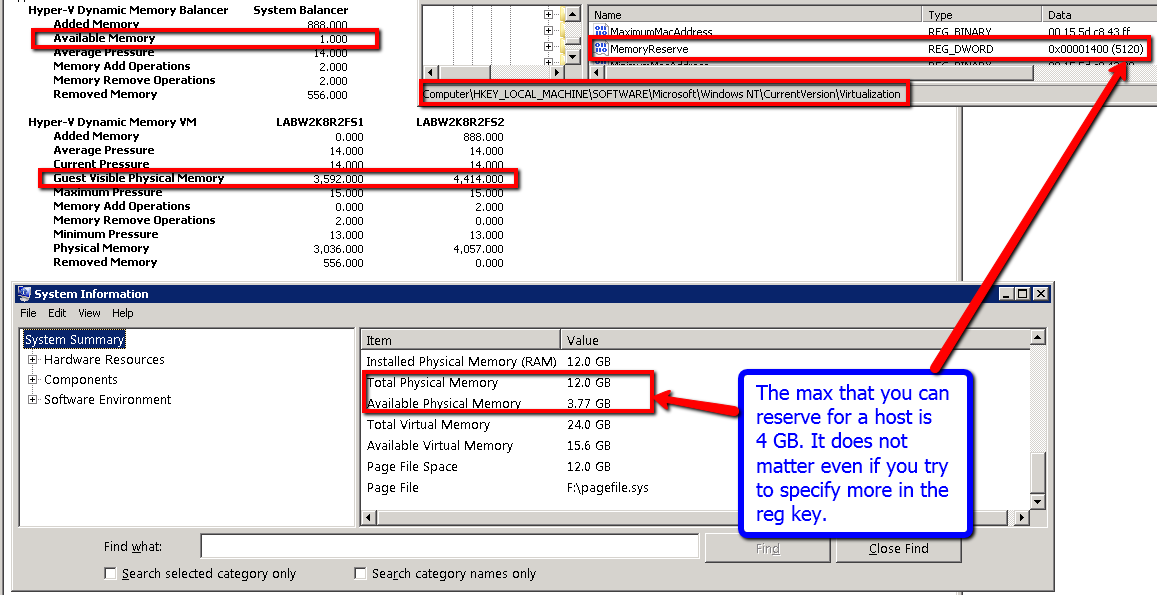
Continuing our discussion on Dynamic memory I will like to talk about Hyper-V memoryreserve option and as i mentioned about it in my Dynamic Memory and Trusted Task manager counters article, this registry key is suggested primarily where you are running more roles in parent partition [other than Hyper-V and failover clustering] against the recommended best practices. Ben Armstrong, Virtualization Program Manager spoke about same in his blog here. The only thing which i wanted to add was that there is a max limit on this registry key as per my testing and the screenshot below speaks all.

So the max value for this reg key is 4 Gb irrespective of what you specify in registry key. Hope this helps.
GAURAV ANAND
Tweet
So the max value for this reg key is 4 Gb irrespective of what you specify in registry key. Hope this helps.
GAURAV ANAND
Tweet
Thursday, September 16, 2010
Dynamic Memory and Trusted Task manager counters
So while we all are still waiting the RC version of SP1 there was an interesting observation which I wanted to share on dynamic memory. This is in reference to the information available in task manager of the Dynamic memory enabled guest OS. There are a few counters in task manger which cannot be trusted anymore and it is recommended to leverage information made available in Hyper-V GUI like “current memory” to see the actual amount of memory assigned to the guest OS.
To explain the same, I went and rebooted my Dynamic memory [DM] enabled guest machine LABW28R2FS1…just after the reboot, you can see the information of task manager and Hyper-V GUI, current memory counter matches and is identical.


GAURAV ANAND
To explain the same, I went and rebooted my Dynamic memory [DM] enabled guest machine LABW28R2FS1…just after the reboot, you can see the information of task manager and Hyper-V GUI, current memory counter matches and is identical.

However after manually reducing the memory buffer and memory priority of the VM, I made it release some memory dynamically and so the Dynamic memory virtualization service client DMVSC.sys took the memory from non paged pool and made it available to the Virtualization service provider [VSP] in host and hence the guest OS has no clue that memory was ever removed from it.

So the ballooned memory in fig 2 is 1755-512 =1243 MB . Now again by playing with memory buffer and priority settings I made memory available to VM and you can see when extra memory [more than what it had earlier] is made available, task manger counter and current memory counter in Hyper-V GUI matches.


So in simple words we can very well see that guest OS task manager has no clue when memory is removed via DMVSC.sys and hence you should not rely on task manager for total memory counter. Similar kind of testing showed me that we even should not rely on “Commit(MB)” counter in guest task manager. We in fact should use information made available in Hyper-V GUI.
I must say I love dynamic memory feature and I am using it since it was made beta on my Test Hyper-V host cluster and its awesome. I am eagerly waiting for the RC version and soon after SP1 Release we will get an update for SCVMM 2008 R2. There is another interesting blog entry made by fellow MVP Aidan Finn on Reserve host memory and is a must read especially if you are not following best practices and running roles other than Hyper-V and clustering in parent partition. Hope you enjoyed reading this and have a good time ahead.GAURAV ANAND
Subscribe to:
Posts (Atom)


 Posts
Posts


